
About a year ago, I got the Corsair K100 opto-mechanical keyboard. You can check my previous review here. I still have it! But as my daily driver, I’ve now switched to using the Logitech MX Keys keyboard. It’s an absolute joy to use, paired with the Logitech Ergo (trackball) mouse.
But first, let’s clear this up. Yes, I got the Corsair K100 keyboard. I loved it. It’s still somewhere in my household, but I’m not actively using it now. I opted for the Logitech MX Keys for a few reasons.
Many friends recommended this, as it has a more “laptop-like” feel to typing. I guess these are ‘chiclet keys.’ It’s also much less noisy. Having a less loud keyboard is excellent since we’re all (still) working remotely and when doing recordings, webinars, and team meetings. It also saves time when I don’t have to edit those clickety-clicks away so much.
Unlike the Corsair one, the new keyboard is wireless, which requires two USB connections. As with the previous Corsair keyboard, this one is slightly pricier at about 88 € (~$100) before taxes. I still think that since you use a keyboard typically for hours each day, a higher price is warranted if the keyboard is solid and lasts for several years without issues.
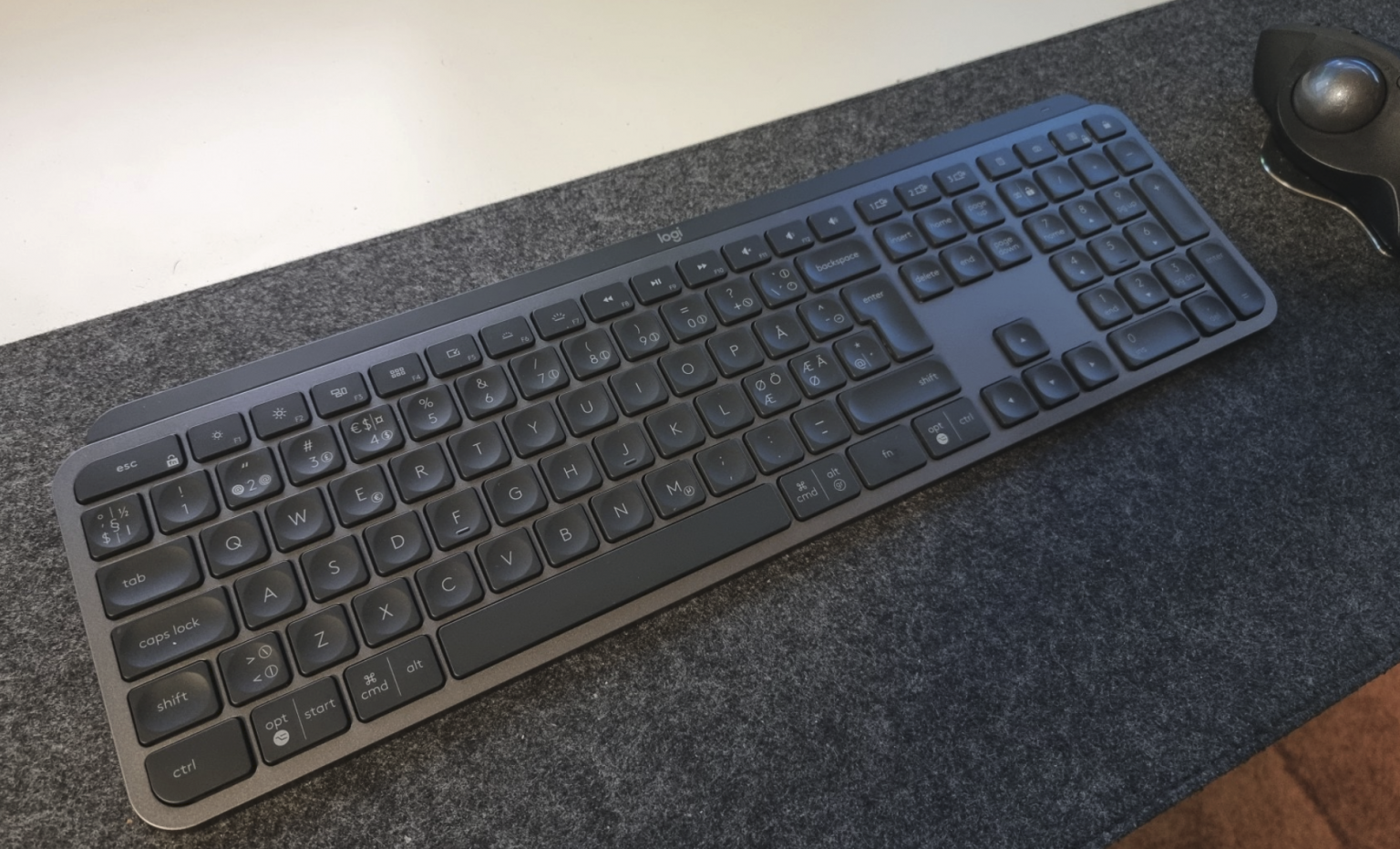
Typing with the keyboard is very close to typing on a Surface laptop. The key travel is close to minimal, but the feeling and confidence you’ve hit the right keys are there. I can’t say I’m faster to type on this keyboard, but I’m getting close – it might take a few more weeks to get my typing optimally set.
So far, I’ve typed longer documents, some blog posts, and plenty of emails with this. The Logitech MX Keys has a feature where it lights up built-in light when you approach the keyboard. This seemed to drain the battery quite fast, as, after three weeks, I got a notification that recharging was required. I’ve since turned off the lights – I usually don’t look at the keyboard when I type, so the light is just for fun.
Speaking of which, the Logitech Options app handily manages both the mouse and the keyboard.
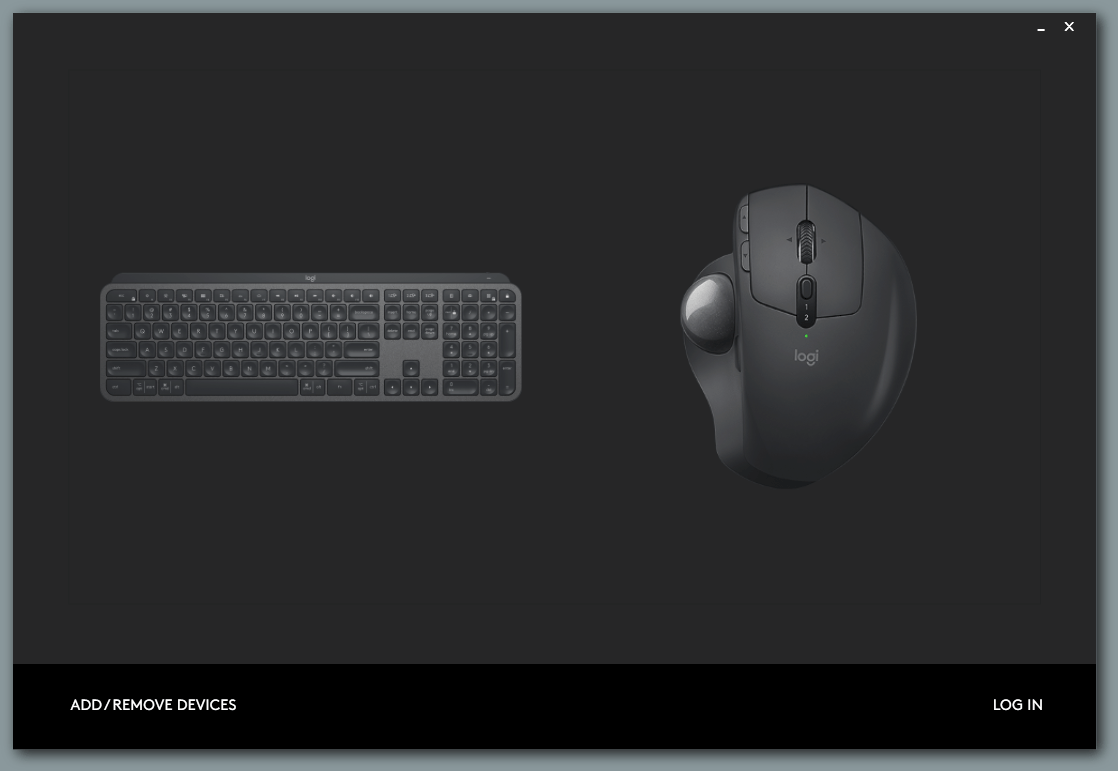
The only thing I needed to configure through the app was to force the F1..F12 keys to not default to the media key functionality.
Overall, I like this keyboard. It’s so different from the Corsair (mechanical) keyboard that these are hard to compare. The MX Keys is more sophisticated but less robust. The Corsair had a massive, robust, shell while this keyboard had a magnesium-alloy type of feel. It won’t break for sure, but I also wouldn’t perhaps drop this on the floor too many times.
If you’ve ever used a Surface Laptop, you might know how it feels to type on this one – it is that close in terms of typing feel and comfort.
I’m not using wrist support, as I have the larger felt mouse/keyboard mat to support while typing.
In closing
Switching to yet another keyboard has been less challenging than I anticipated. It took me weeks to get a good feeling with the Corsair keyboard. Not so with the Logitech MX Keys – I’m happily typing away and thinking less about the keyboard or how I’m explicitly typing. I recommend this keyboard if you’re searching for a reasonably silent keyboard with the “laptopy” feel.