Publishing a self-hosted Ollama instance for Microsoft Power Automate using Dev tunnels

I’ve previously written about Ollama, the fantastic tool that can locally run and host large generative AI language models for you. I use it daily for testing and development and, generally, for running LLMs.
While Ollama runs natively and neatly on my Windows 11 workstation, I sometimes need to hook something from the cloud to my Ollama instance. Perhaps I’m building a cloud-based automation using Power Automate (part of Microsoft Power Platform services) and would need to connect with Ollama and an LLM I’m hosting. I could use Azure OpenAI, but at times, it’s too expensive or too sluggish for my needs.
For this need, I can utilize Dev tunnels from Microsoft. It’s a small tool that opens a secure tunnel to the Internet; internally, you can hook it up to anything you’re self-hosting. Like Ollama.
Let’s see how this works.
Setting it up
First, install Ollama and run it: ollama serve &. You can pull models you want, such as Llama2 with ollama run llama2.
Once Ollama is running in the background, install Dev tunnels. It’s easy with Winget, just run: winget install devtunnel
For Dev tunnels to work, you must authenticate with a Microsoft platform: devtunnel user login
Now, all that is left is to run Dev tunnels to connect with the default port of Ollama (port 11434). Since Ollama doesn’t require authentication, make sure to add the --allow-anonymous parameter: devtunnel host -p 11434 --allow-anonymous
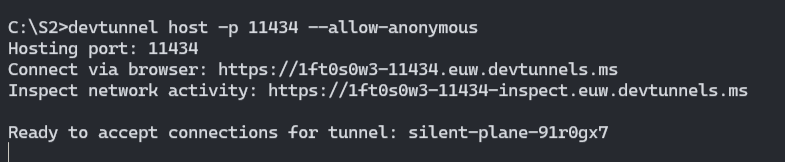
You have two URLs now. The first one is for your cloud-based workload to connect with Ollama, and the second is for debugging the traffic. Open the latter link.
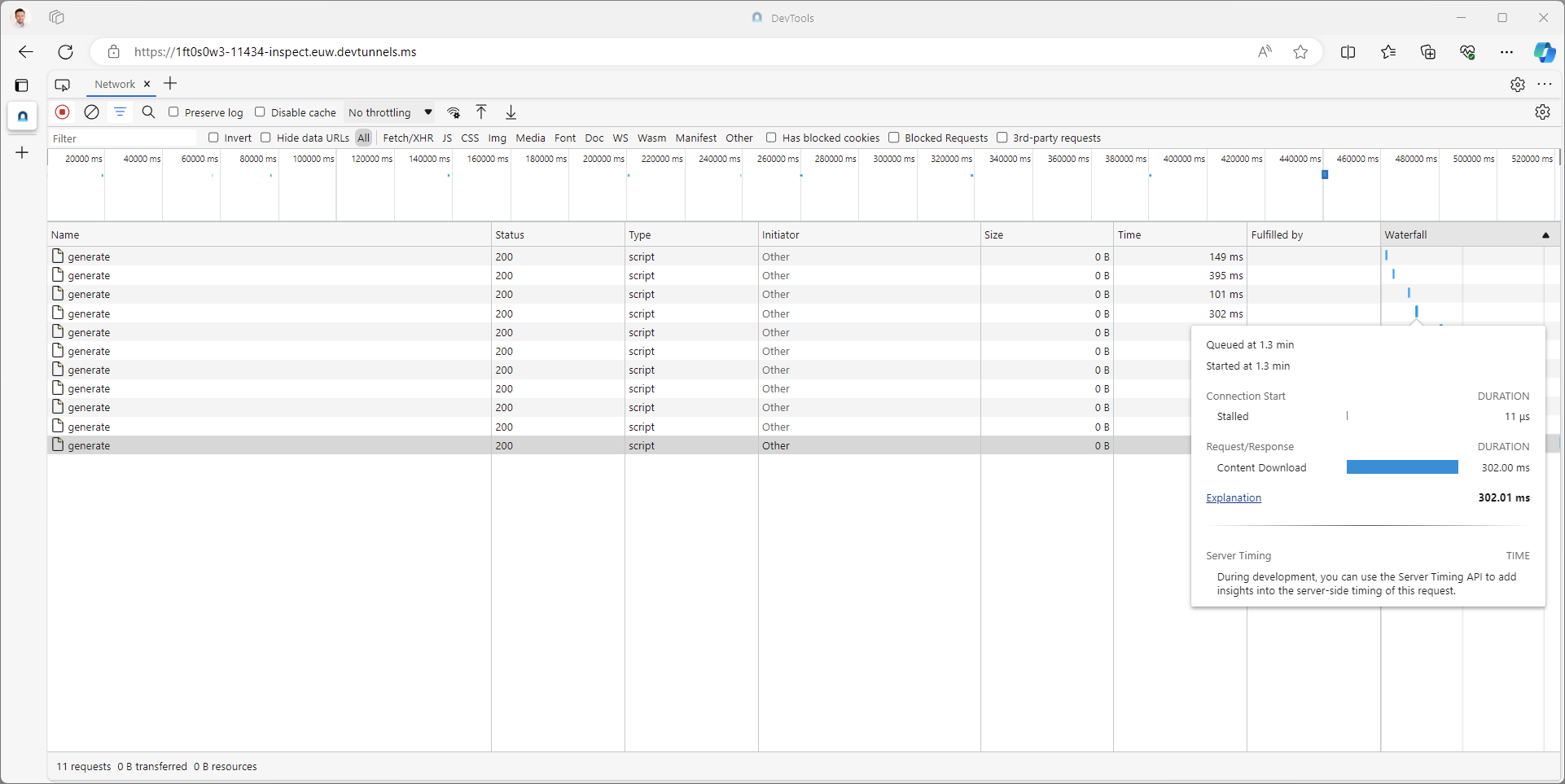
Keep this open. Then build a simple Power Automate (instant cloud flow is fine), and simply use a HTTP connector:
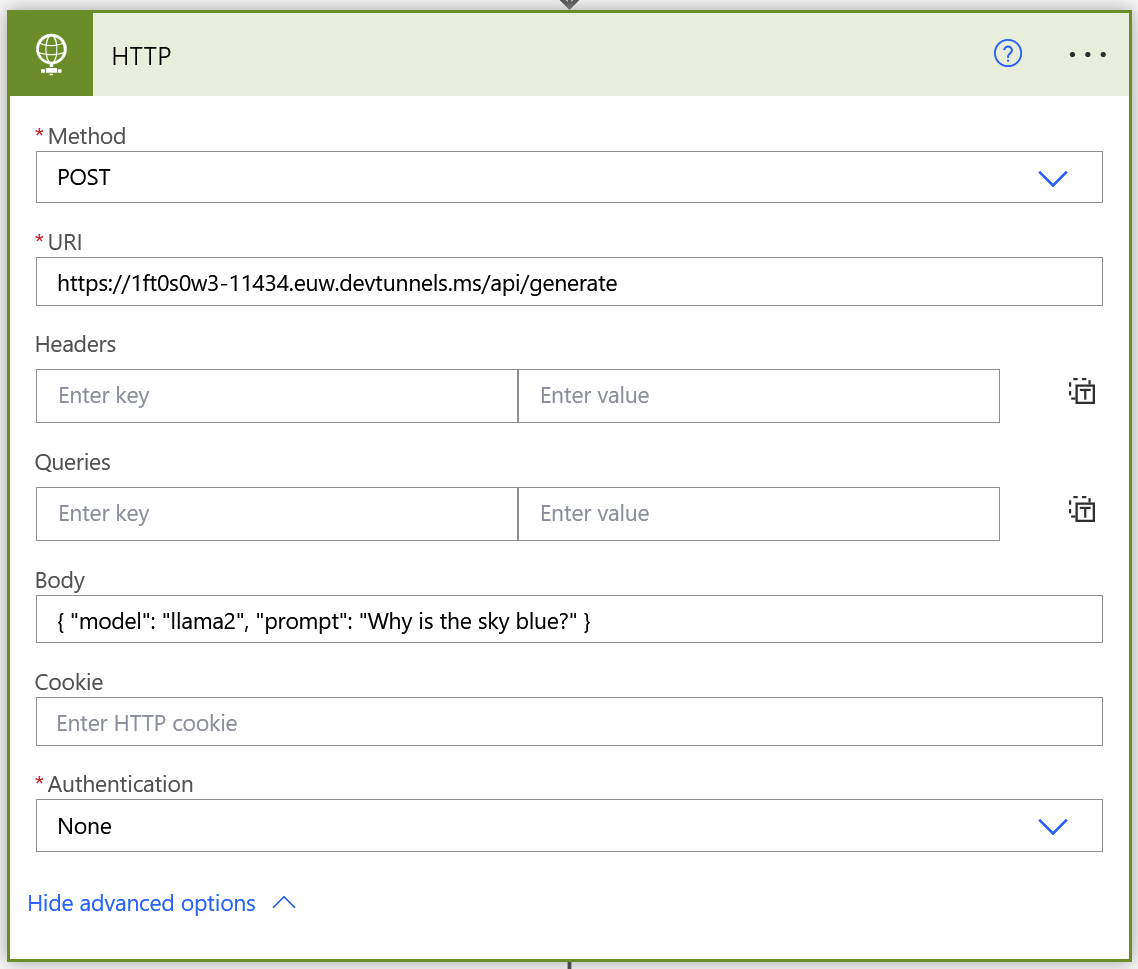
Here, you call the Dev tunnel URL and add /api/generate for Ollama. Then, in the Body of the HTTP request, add whatever your model expects to get.
The full Power Automate flow looks like this:
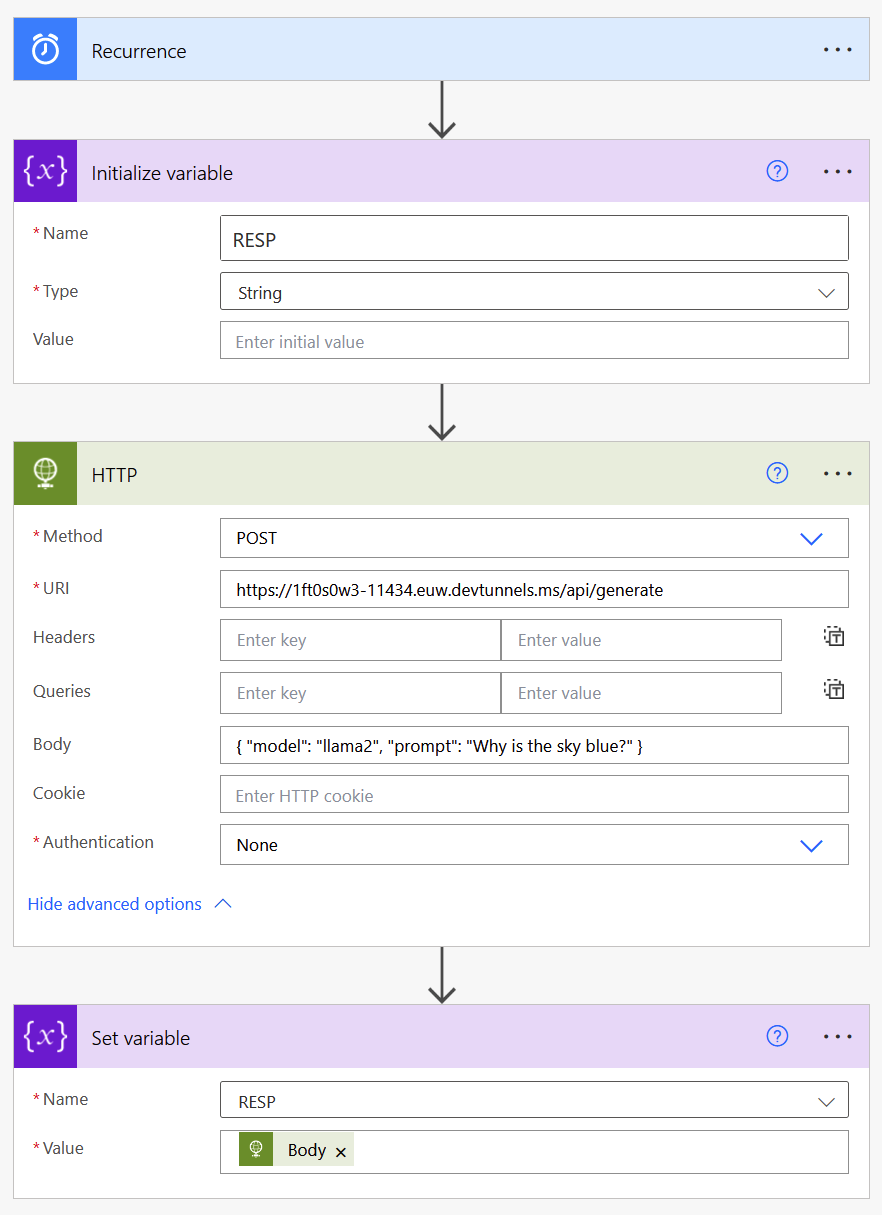
I’m using a variable to capture the output of Ollama, i.e., the results Ollama returns through the Dev tunnels. To run this, run it manually in Power Automate.
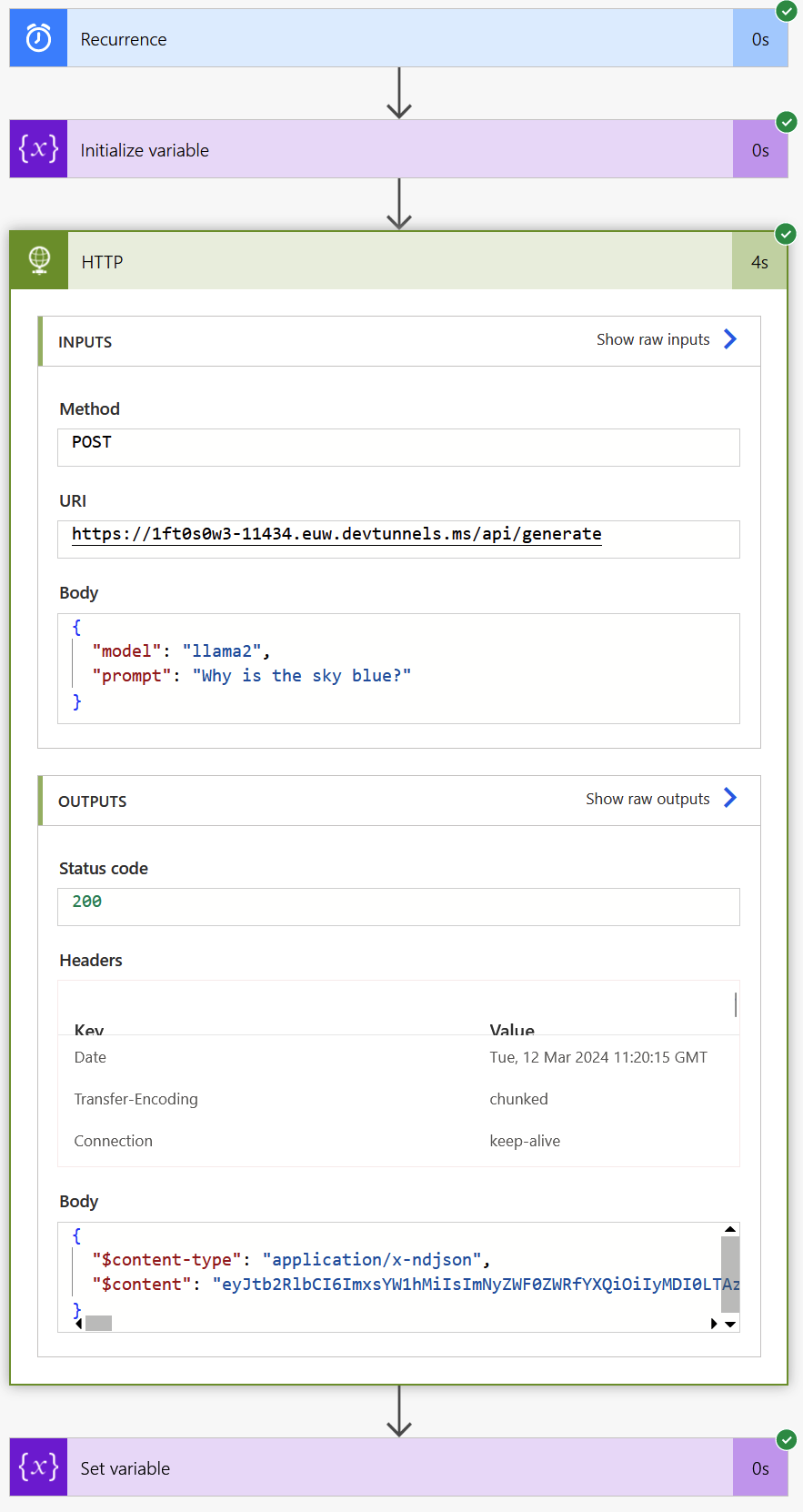
We can see that the request returned a HTTP 200 OK. The results are in the variable:
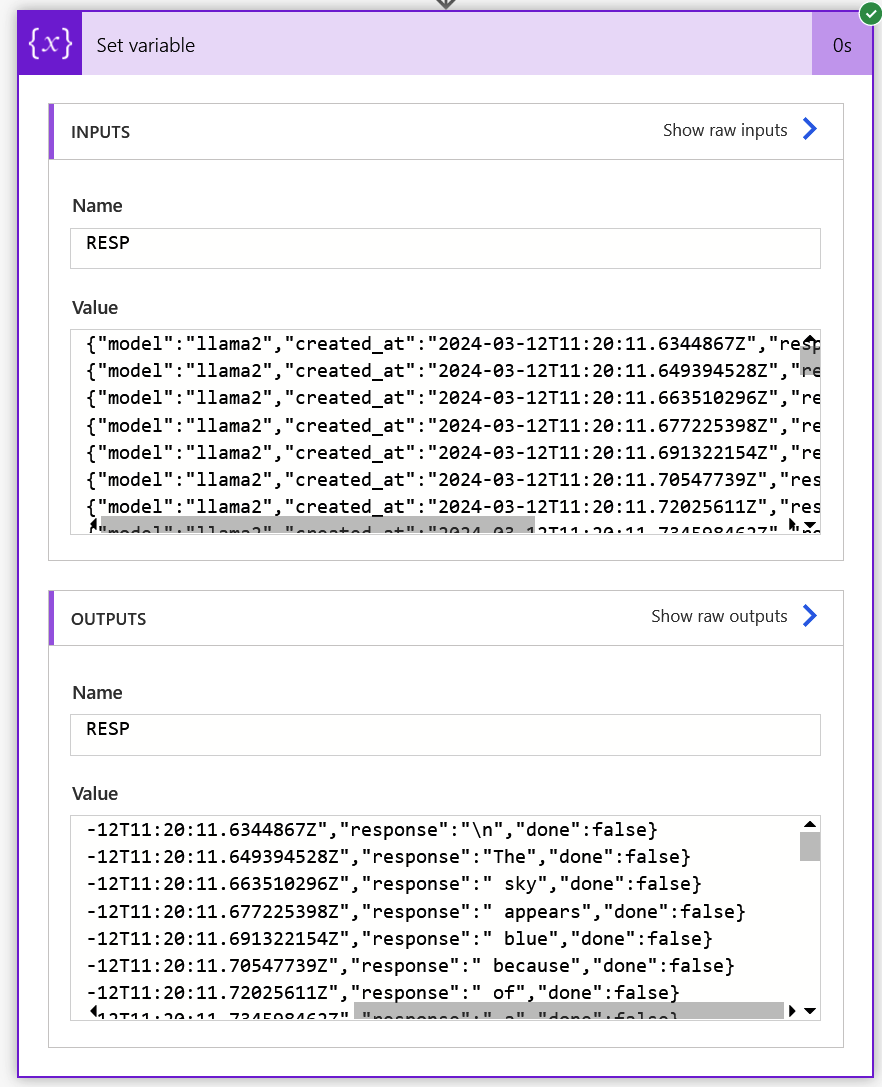
There we go! It’s up to you to parse the output as you see fit.
For debugging, we opened the latter URL from Dev tunnels. And this is how it looks over there:
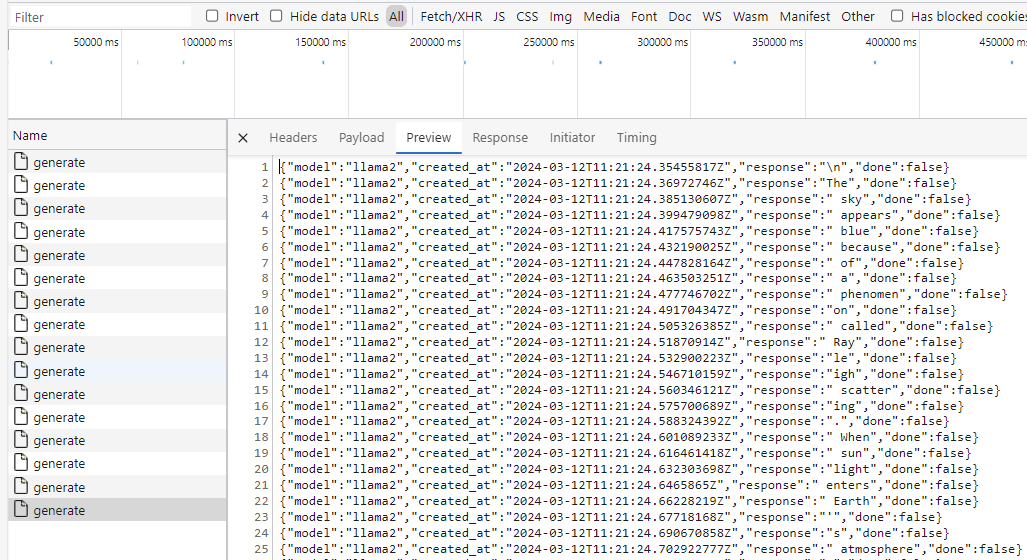
Beautiful! It’s fast, it’s self-hosted generative AI, and it’s free. Well, sans the Power Automate part, but obviously the caller could be anything outside your local network.
To sever the connection, just stop Dev tunnels with Ctrl-C 😄