Modernize your tooling deployment with Windows Package Manager (winget)

For the longest time, I’ve relied on Ninite to deploy my tools. The software that I rely on a daily basis – and for this, I’ve had a simple script to drop the tools for new VMs, servers, laptops, and workstations I work with. Ninite allows you to create a single executable, that includes the tools you want – such as your favorite browser, WinRAR, Spotify, and similar.
I also started using Chocolatey some years ago, as it has thousands of software packages available. It’s great also. So it only made sense that at some point, Microsoft comes out with their own vision of what a modern tooling deployment approach would be.
Windows Package Manager, or winget for short, was announced during Build 2020 in May. It’s open-source, and the repo is here. The benefit of winget is that it’s supported by Microsoft, and it’s easy to use for installing your preferred applications and tools. If you’re already fully invested in Chocolatey or something similar, then perhaps winget is an alternative that you can use side-by-side.
Installing winget
Using winget is trivially easy. First, you’ll need to install it. You can get the latest release from the Releases page on GitHub. At the time of writing, it’s v0.1.41331 Preview. Early days, in other words. You can also search for it via the Microsoft Store.
Once winget is installed, open Windows Terminal (or plain old Command Prompt) and type:
winget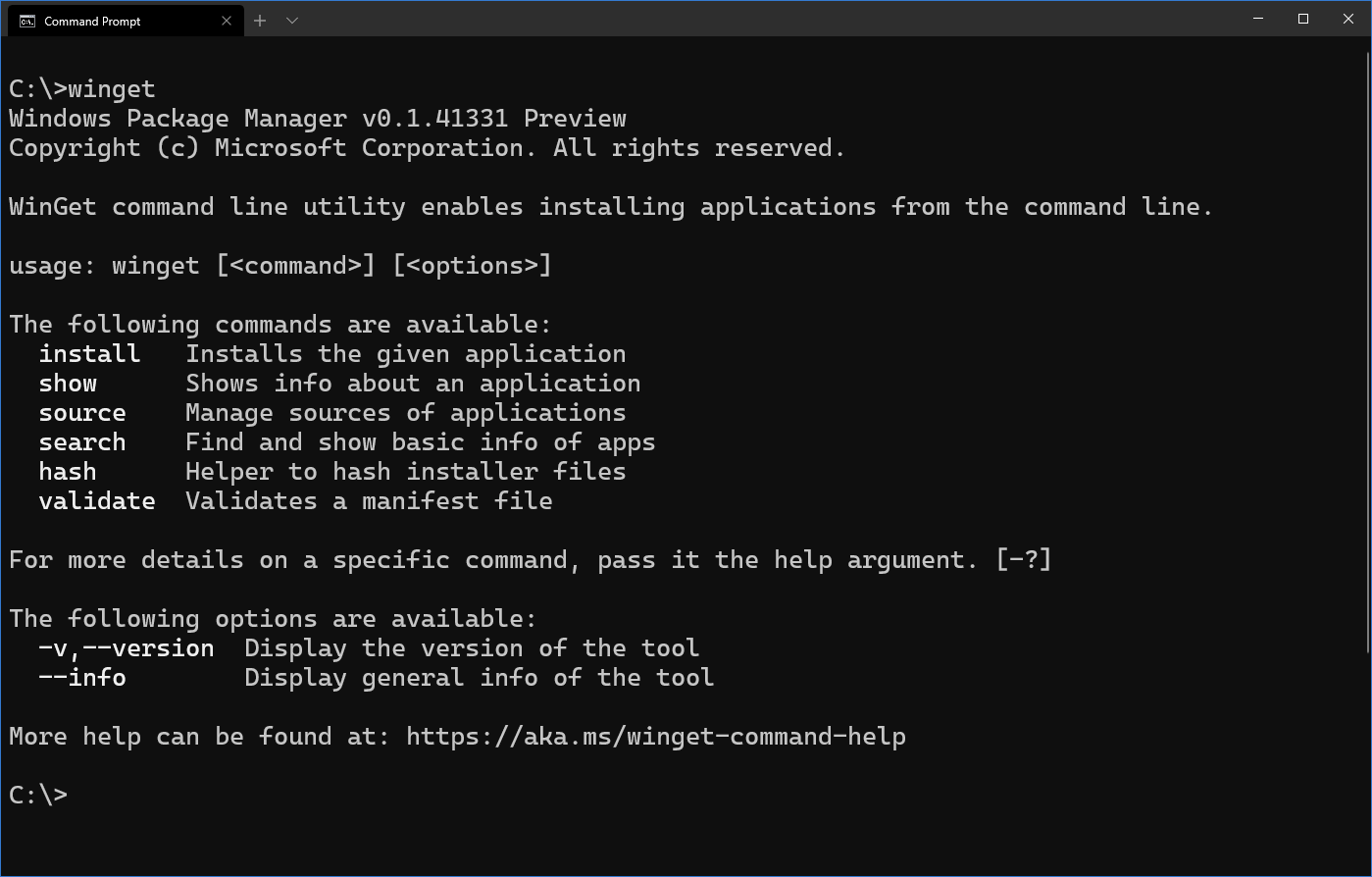
Searching and installing for tools
Winget uses it’s own index to provide you a catalog of tools. To search this index, use
winget search "keyword"To search for all things Azure, I used winget search azure:
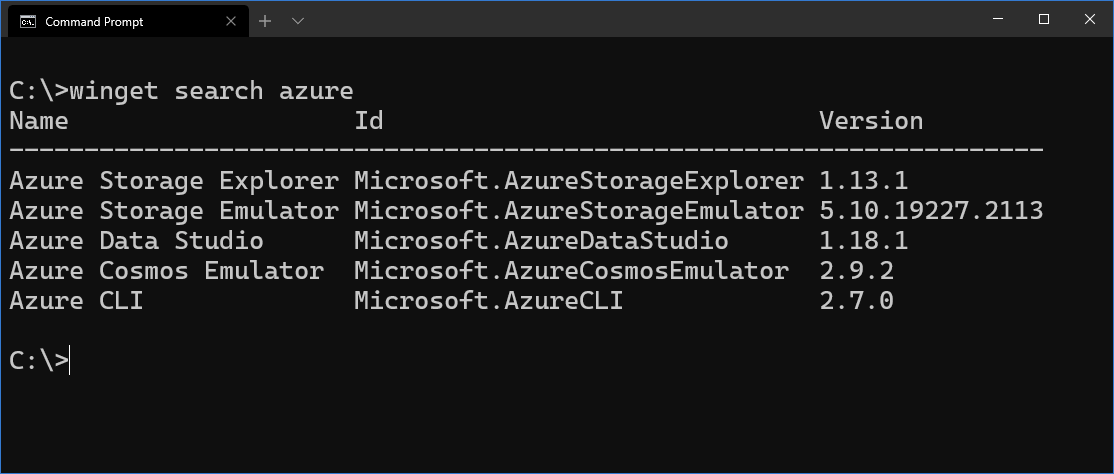
I want to install the Azure Cosmos Emulator, so I’ll next use winget install to install it:
winget install "Azure Cosmos Emulator"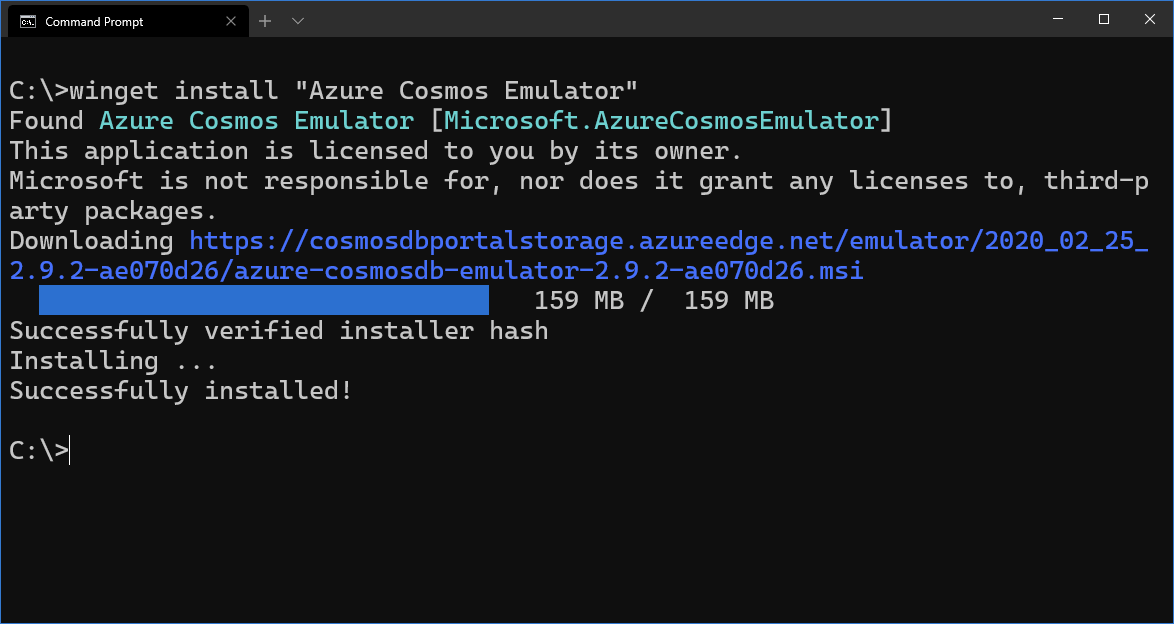
As mentioned above, the catalog of tools and apps is maintained by Microsoft. You can view details on the index with:
winget source list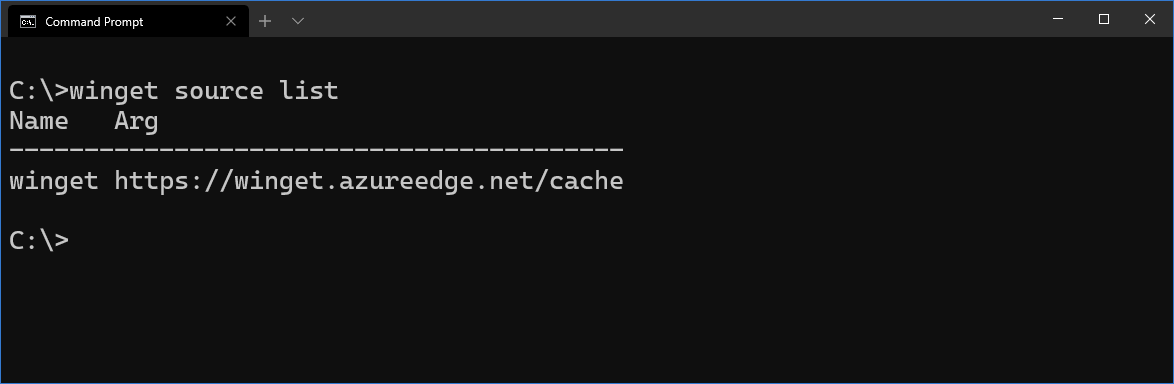
And to drill further, use:
winget source list --name winget 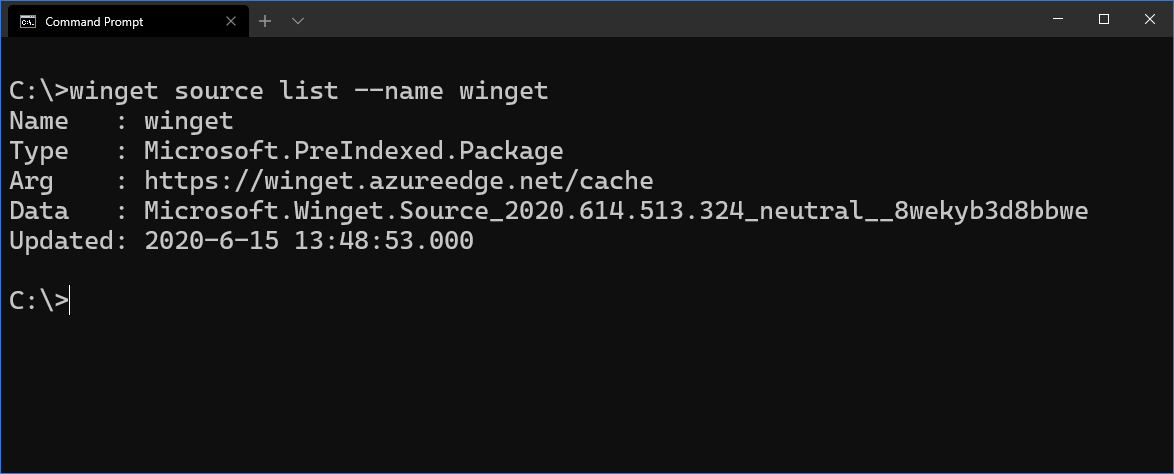
For now, it isn’t possible to add your own custom repositories for winget to utilize.
Using the –exact parameter with installs
I ran into issues while trying to install Git for Windows. The issue stems from specifying the application for winget install, as it’s ambiguous if there are other apps that resemble this:
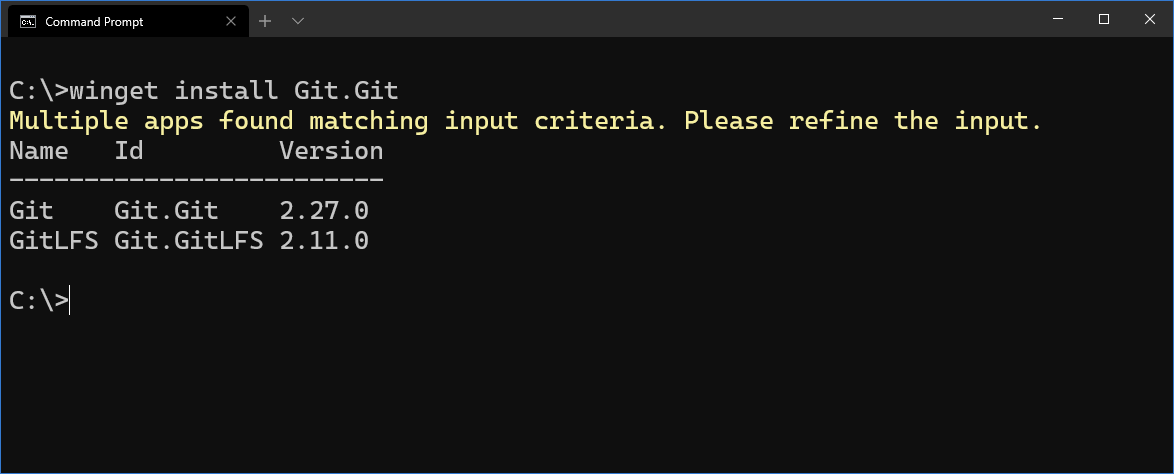
To tackle this issue, use the –exact (or -e) parameter:
winget install Git.Git --exact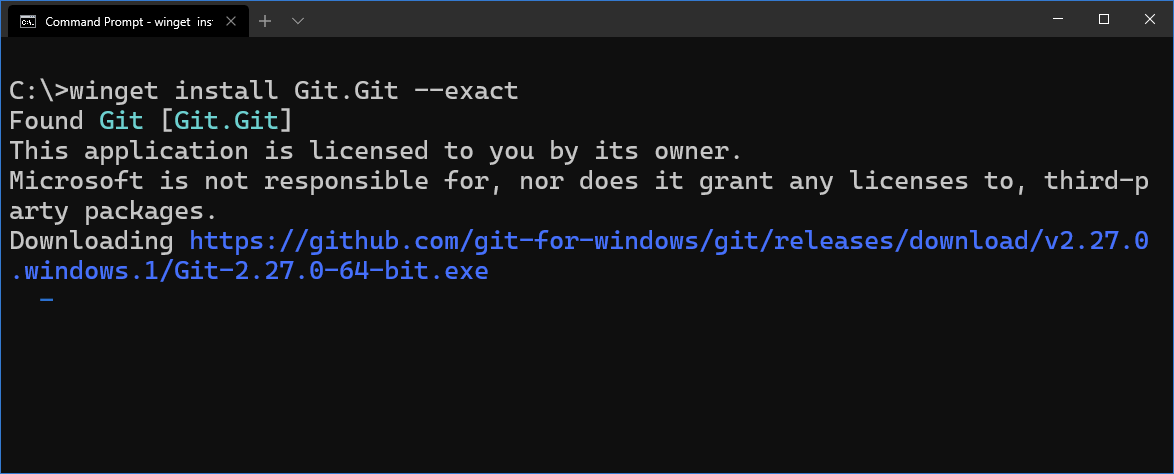
Submitting packages to winget
You can also submit your own packages for winget to consider adding to their index. This requires creating a manifest file, that describes your package. Then you’ll test the manifest with winget validate and winget install -m manifest to verify everything works properly. Finally, you can submit it for consideration as a PR via GitHub.