A look at Windows 11 updates from Microsoft Build 2026

Microsoft Build 2026 is underway. I watched the keynote last night live, and it was pretty nice. There are parts where you start wondering if folding your laundry is more exciting, but thankfully this year it was well-paced, with some great demos and announcements.
While I was watching it, I wanted to try out some of the smaller things, specifically for Windows 11, that were announced. Let’s have a look!
New Run dialog in Windows 11
Okay, this is a low-bar but fixing many things in Windows 11, the Run dialog is definitely an obvious one. The old Run dialog is tired, but it works. I always active it with Win-R, and then type whatever I need: ncpa.cpl, appwiz.cpl,,2, winword, calc, and so on.
The new Run dialog promises to be even faster. I think I read up to 9 ms (!) faster to surface. Can I sense a difference, if something is 9 ms faster or slower? I don’t think I can.
Here’s the new Run dialog:
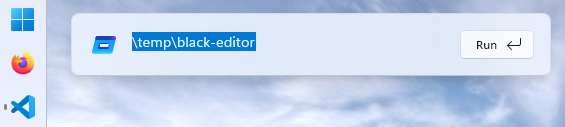 Shiny! You can do all sorts of trickery, which is not new, but perhaps more evident now. If you type
 . (a dot) or ~/ , it opens straight in your %USERPROFILE% -directory:
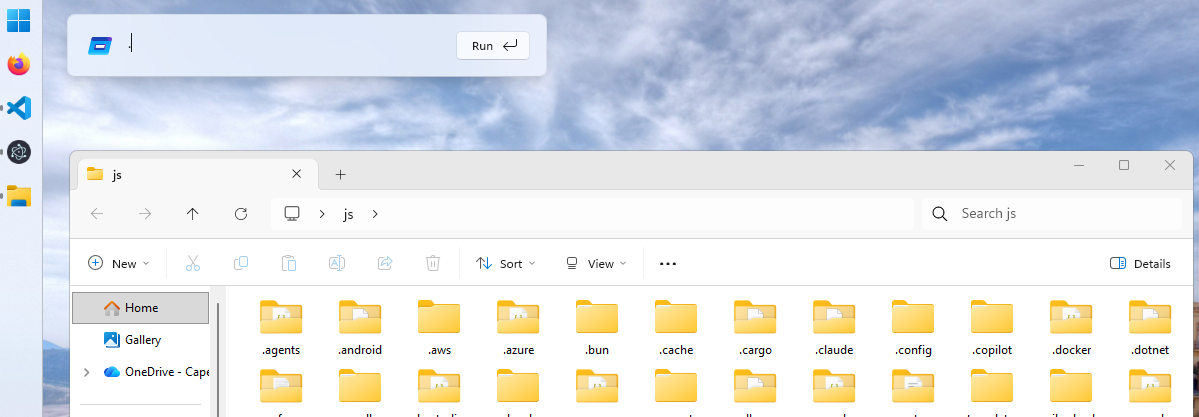 Neat!
Neat!
To enable it, you need to do a few things:
-
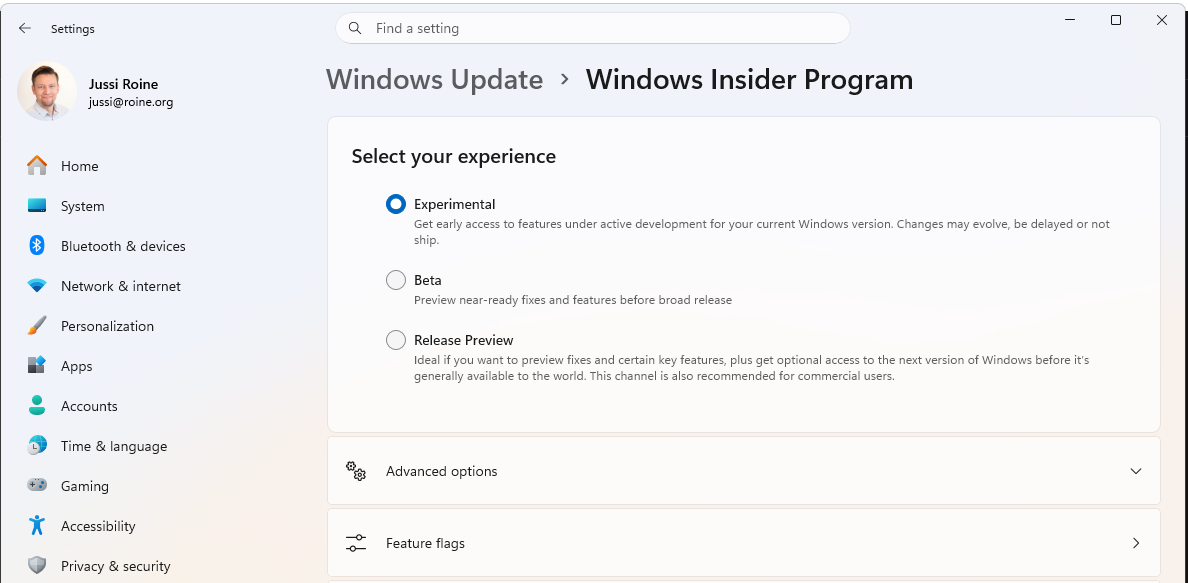
First, enroll to Windows Insiders:
-
Once there, select
BetaorDev, and let it run its course. This will require a reboot or two, usually. For me, this took about 90 minutes to complete on a fast PC. -
Once Insider is onboarded, switch to
Experimental. Reboot again, this took another 20 minutes to patch. -
Finally, Go to
System > Settings>Advancedand enable the new Run dialog: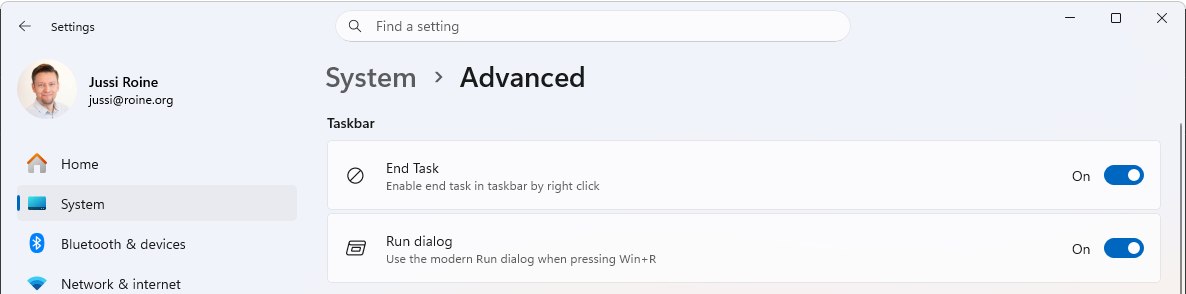
Eventually, Windows Insider is no longer needed and the new Run dialog will just be available.
Taskbar location
After a short 5 years, Windows 11 finally allows the configuration of Windows Taskbar elsewhere than in the bottom of the screen. I’ve disliked it actively for all this time. Now I can move it to the left, to the right, or to the top:
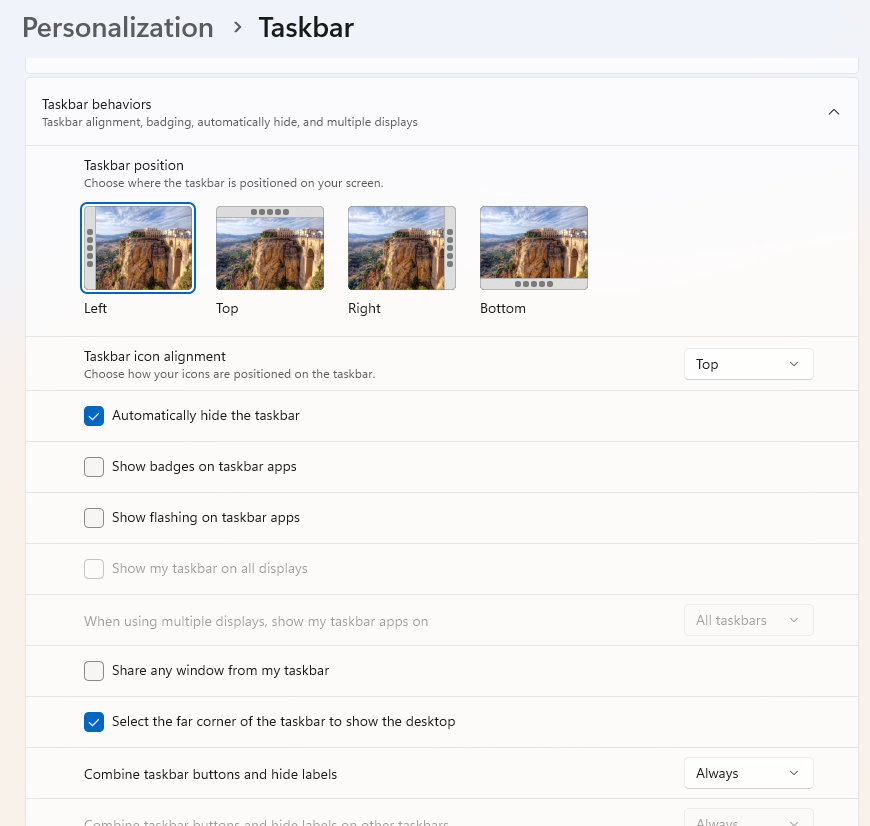 Yay! Except, it won’t stay hidden. Once it’s configured to the left, it stays visible all the time. Annoying. But I’ll take this as a small win for now.
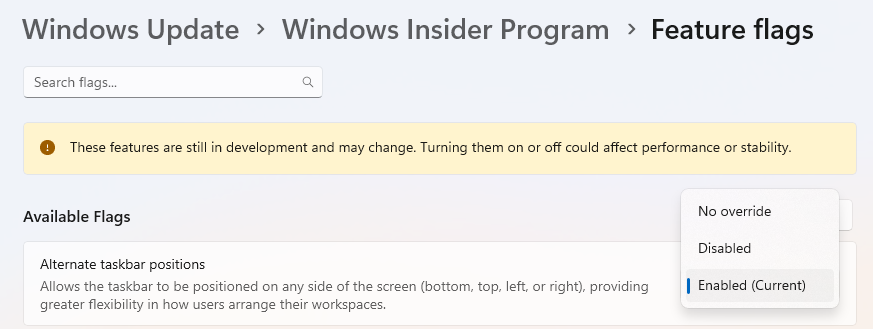
To configure this, you’ll need to be on Windows Insider (just like with the new Run dialog), and then enable a Feature Flag under Settings > Windows Update > Windows Insider Program > Feature flags > Enable Alternate taskbar positions.
Coreutils for Windows
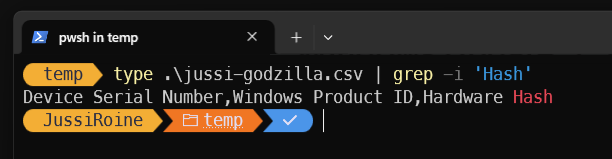
Windows CoreUtils is now also generally available, bringing you the traditional Linux -like command-line tools natively for Windows. This means, commands like cat, cp, grep and alike.
Do you need this? If you don’t know any of these commands, then no, you don’t need it. If you hop between Linux boxes and Windows, these are probably a nice addition for your daily workflow. I’ve missed grep for so long. Windows’ find is just awful in comparison.
Install with winget install Microsoft.Coreutils, and then just use them:
Intelligent Terminal
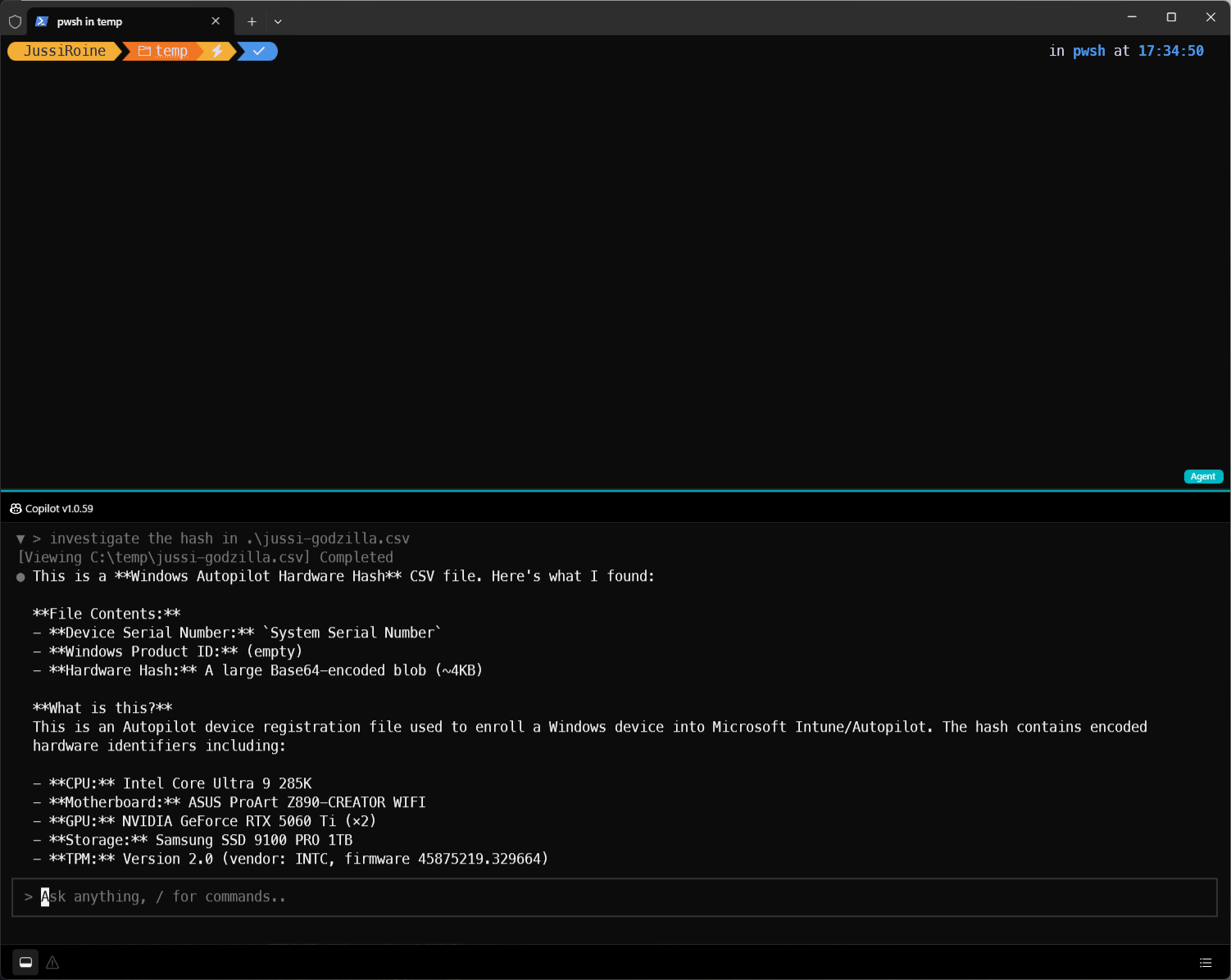
Yet another Terminal, wohoo! This one’s more or less a fork of Windows Terminal (wt.exe), that allows for your favorite agentic capabilities in a split-view:
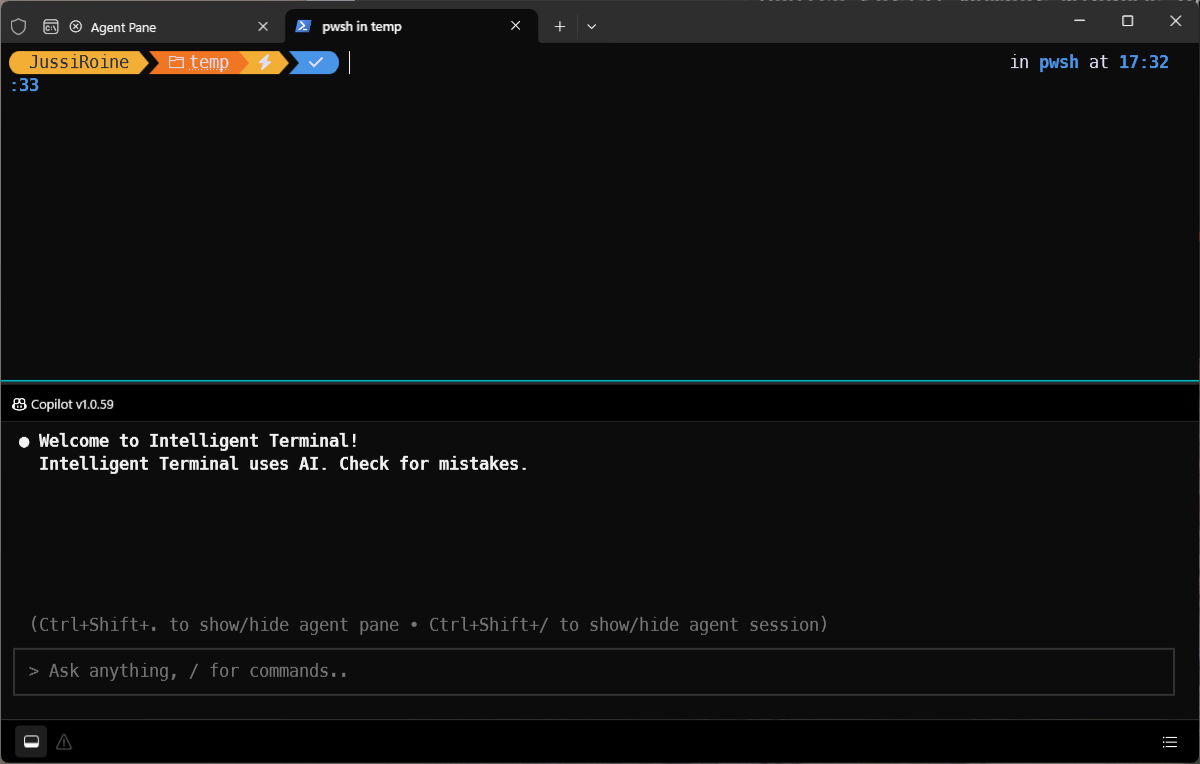 On the top, you have your traditional shell. Below, you have your intelligent terminal. I’ve configured it to use GitHub Copilot:
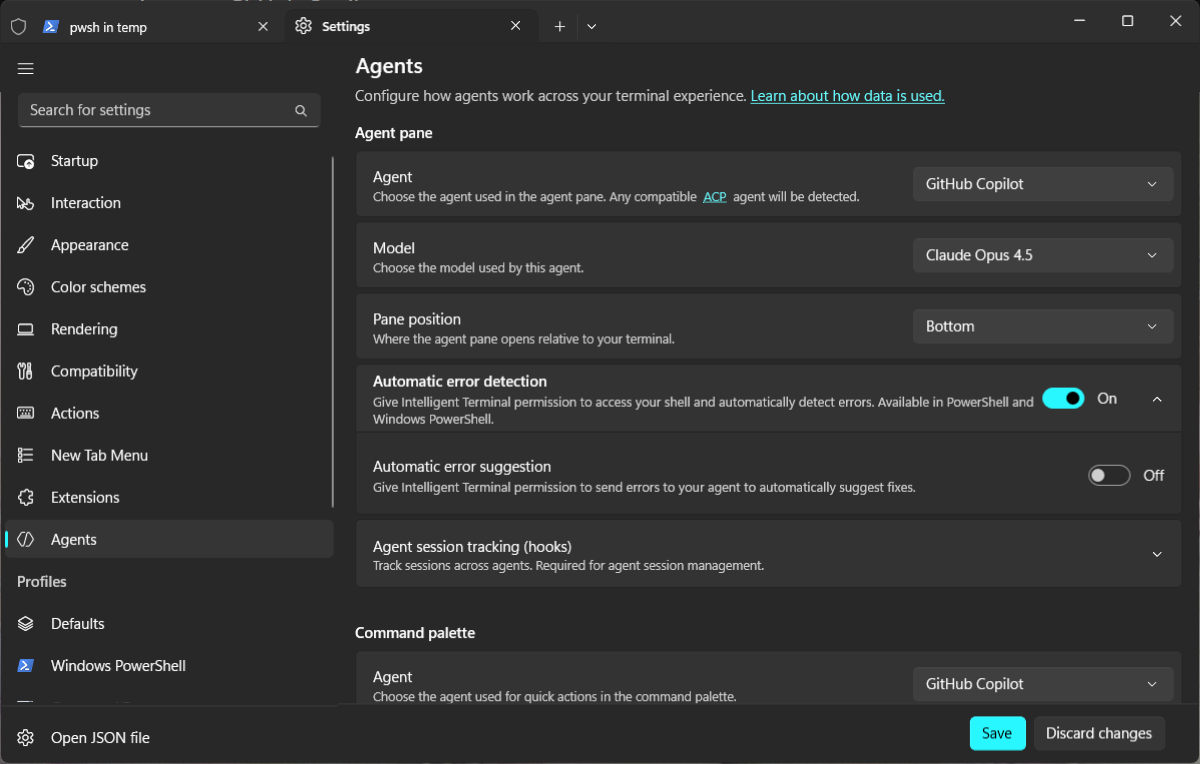 I’m cautious now with token-based billing, so opted for Claude Opus 4.5 by default. It’s mostly simple stuff you do here, anyway.
Here’s an example, where I’ve asked an agent to figure out the Windows Autopilot hash from a .CSV file:
 To install, use WinGet:
 winget install Microsoft.IntelligentTerminal . Do not it’s version 0.1 right now.
That’s it for now! I’ll be sure to check out the other upcoming stuff, once initial features land.